Imagine entering the house with shopping bags in both hands and saying, “Turn on the kitchen lights.” The room brightens without touching a switch. Voice-controlled lighting can also dim a bedroom, change colours for a celebration or switch off every lamp before bedtime.
The setup is easier than it appears, but the bulb, app, Wi-Fi network and voice assistant must be connected correctly. A smart bulb cannot respond when its wall switch is off, and an unclear device name can make the assistant control the wrong room. Use the following process to create reliable voice control.
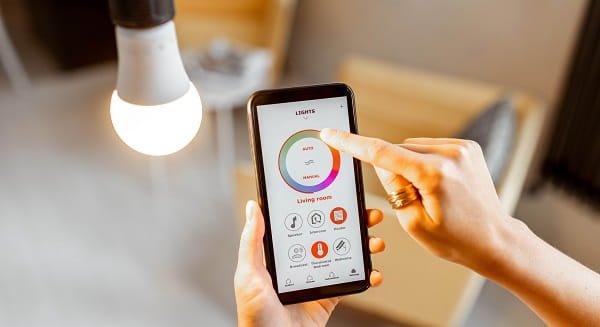
Check Which Voice Assistant the Bulb Supports
Read the packaging or product page before installation. Look for compatibility with Google Home, Amazon Alexa, Apple Home, Siri or Matter.
A Matter-compatible bulb can often work across several major smart-home platforms. Other products may require you to connect the manufacturer’s account to the chosen assistant.
Some bulbs connect directly through Wi-Fi or Bluetooth, while others require a dedicated bridge or hub. Complete any hub installation before trying voice commands.
Install the Bulb and Leave the Switch On
Switch off the existing light and allow the old bulb to cool. Fit the smart LED bulb into the correct holder without overtightening it, then restore power.
The physical wall switch must normally remain on. Switching it off disconnects electricity from the bulb’s wireless components, making app and voice control impossible.
Families that frequently use the wall switch may benefit from a compatible wireless control, smart switch or switch cover that prevents accidental power loss.
Set Up the Bulb in Its Official App
Download the manufacturer’s official application. Create an account when required and choose the option to add a light.
Many Wi-Fi bulbs use a 2.4GHz home network. Connect the phone to the recommended Wi-Fi band, enter the correct password and keep the bulb close to the router during setup.
If the bulb does not blink, follow its exact pairing or reset sequence. This commonly involves switching the power on and off in a particular pattern, but the timing differs between brands.
Test on, off, brightness and colour controls inside the manufacturer’s app before adding voice control.
Add the Bulb to Google Home
Open the Google Home app and select the option to add a device. Choose Matter-enabled device, Works with Google Home or the relevant setup method.
Scan the Matter code or select the bulb manufacturer and sign in to the connected account. Approve the requested permissions and assign the bulb to a room.
You can then use commands such as:
“Hey Google, turn on the study light.”
“Dim the bedroom light to 30%.”
“Change the living room light to warm white.”
Connect the Bulb to Amazon Alexa
Open the Alexa app and go to Devices. Select the add button, choose Light and follow the instructions for the bulb brand.
Some products require enabling the manufacturer’s Alexa skill and linking the same account used in the bulb app. Alexa may then discover the light automatically.
Place the bulb in an appropriate room group. This allows commands such as “Alexa, turn off the bedroom lights” without naming every device separately.
Control the Bulb With Siri
For Apple Home-compatible or Matter-enabled bulbs, open the Home app on an iPhone or iPad and select Add Accessory.
Scan the setup code, choose a room and give the bulb a clear name. Once added, Siri can switch the light on or off, adjust brightness, change supported colours and activate scenes.
Remote control outside the home may require a supported home hub and correct account settings.
Give Every Light a Clear Name
Names such as “light one,” “main light” and “room light” can confuse voice assistants. Choose simple and distinct names such as “desk lamp,” “balcony bulb” or “kitchen ceiling.”
Avoid including the room name twice when the device is already assigned to that room. For example, a bulb named “ceiling” inside the bedroom can be controlled as the bedroom ceiling light.
Create Groups, Scenes and Routines
Grouping lets one command control several bulbs. A “living room” group may include ceiling lights, a floor lamp and decorative lighting.
Scenes store preferred combinations of brightness and colour. A reading scene can use bright neutral light, while a movie scene can dim several bulbs.
Routines can activate lights at sunset, switch everything off at bedtime or gradually brighten a bedroom in the morning.
Fix Voice Commands That Stop Working
Check whether the bulb still works in its manufacturer app. If it does, unlink and reconnect the smart-light service in the voice-assistant app.
Restart the bulb, router and smart speaker. Confirm that the wall switch is on and the bulb appears online.
Rename duplicate devices and remove old entries left behind after resets or replacements. Install firmware and app updates when available.
FAQs
Q: Do I need a smart speaker to use voice-controlled bulbs?
A: Not always. You can use Google Assistant, Alexa or Siri on a compatible phone. A smart speaker provides easier hands-free control around the room.
Q: Why does my assistant say the bulb is unavailable?
A: The bulb may have lost power, Wi-Fi access or its account connection. Check the wall switch, manufacturer app and network before resetting it.
Q: Can several people control the same smart lights?
A: Yes. Add household members through the chosen smart-home app rather than sharing your main account password.
Q: Can I control smart bulbs when the internet is down?
A: Some hub-based or local-control systems may continue working, but many Wi-Fi bulbs lose voice and remote functions until connectivity returns.c