A gun fires on the screen, but the sound arrives a moment later. A singer’s lips move before the voice reaches your ears, and mobile games feel strangely slow even though the internet connection is stable. This delay is known as audio latency, and it can turn wireless convenience into an irritating experience.
Bluetooth sound must be compressed, transmitted and decoded before it reaches the headphones. Each stage adds a small delay. Streaming applications often compensate automatically, but games, video calls and live instruments are less forgiving. The following checks can reduce latency without immediately replacing your headphones.
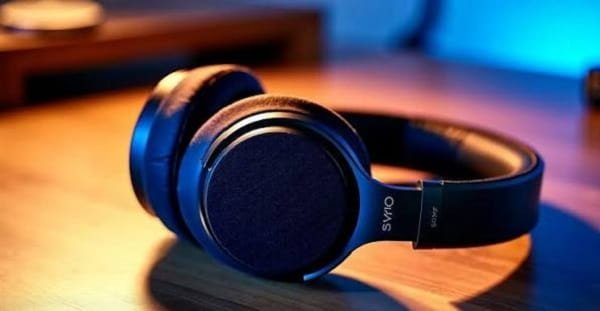
Restart Both Connected Devices
Temporary Bluetooth errors can increase delay after a phone, laptop or television has remained connected for several days.
Switch off the headphones completely. Restart the smartphone, computer, tablet or smart TV, then reconnect the headphones. Avoid leaving the headphones connected to several devices during testing.
A clean restart refreshes the Bluetooth connection and closes background processes that may interfere with audio playback.
Forget and Pair the Headphones Again
Old pairing information can become corrupted, particularly after system updates or repeated connection switching.
Open Bluetooth settings, select the headphones and choose Forget, Remove or Unpair. Restart Bluetooth and place the headphones in pairing mode. Select the correct device name and test the audio again.
When the headphones support multipoint connection, disable it temporarily. Switching between a laptop and phone can introduce pauses, interruptions or inconsistent delay.
Activate Gaming or Low-Latency Mode
Many wireless headphones and earbuds include a gaming mode. This reduces audio buffering and prioritises faster transmission.
Gaming mode may be activated through touch controls, a physical button or the manufacturer’s companion application. Some models call it Low Latency, Game Mode or Beast Mode.
This setting can improve timing during mobile games and videos, although it may slightly reduce wireless range or battery life. It cannot completely eliminate Bluetooth delay.
Update the Headphones and Source Device
Manufacturers sometimes improve connection stability and latency through firmware updates. Open the official companion app and check whether an update is available for the headphones.
Update the operating system, Bluetooth drivers and media applications on the connected device as well. Laptop users should obtain Bluetooth and audio drivers from the device manufacturer rather than random driver websites.
Keep the headphones charged during firmware installation and do not interrupt the process.
Select the Correct Audio Mode
Computers may display separate outputs for the same Bluetooth headphones. One option may be labelled Stereo or Headphones, while another is called Headset or Hands-Free.
Use the stereo output for music, movies and gaming when the headphone microphone is not required. Hands-free mode provides two-way communication for calls but often reduces sound quality.
Video applications may also include an audio-delay adjustment. Use small changes while watching visible speech rather than making a large correction immediately.
Reduce Wireless Interference
Bluetooth uses crowded wireless frequencies. Wi-Fi routers, smartwatches, wireless keyboards and nearby Bluetooth devices may interfere with the connection.
Keep the phone or laptop close to the headphones and avoid placing it behind thick walls or inside a bag. Disconnect unused Bluetooth products during testing.
If the router supports both 2.4GHz and 5GHz Wi-Fi, connecting the source device to 5GHz may reduce congestion around Bluetooth frequencies.
Check the Application and Content
Test more than one video, game or streaming service. If the delay appears only in a particular application, the headphones may not be responsible.
Clear the app’s temporary data where supported, install updates or reinstall it. Downloaded videos should also be tested because badly encoded content may contain audio that is already out of sync.
For smart TVs, compare Bluetooth headphones with the built-in speakers. Some televisions include an AV Sync or Bluetooth Audio Delay setting under advanced sound controls.
Use a Wired Connection for Time-Critical Tasks
Bluetooth latency may remain noticeable during competitive gaming, music recording, video editing or live instrument monitoring. In these situations, a wired connection provides more predictable timing.
Use the headphone cable when the model supports passive listening. Gamers can also consider headphones with a dedicated low-latency USB wireless receiver, which may perform better than ordinary Bluetooth.
Reset the Headphones as a Final Software Step
When updates and re-pairing do not work, perform the manufacturer’s official reset procedure. This may erase saved connections, equaliser settings and customised controls.
Do not guess the button combination because reset methods differ between models. After resetting, pair the headphones with only one device and test them before changing other settings.
FAQs
Q: Can Bluetooth audio latency be removed completely?
A: Usually not. Bluetooth requires processing time, but low-latency modes, updated software and better codecs can make the delay less noticeable.
Q: Why is latency worse while gaming than watching videos?
A: Video apps can delay the picture to match the sound. Games respond live to user input, so they cannot compensate as easily.
Q: Does a newer Bluetooth version guarantee lower latency?
A: Not by itself. Latency also depends on the codec, headphones, operating system, application and processing settings.
Q: Will buying expensive headphones solve audio delay?
A: Not automatically. Premium models may offer better processing, but check specifically for gaming modes, low-latency codecs or a dedicated wireless receiver.