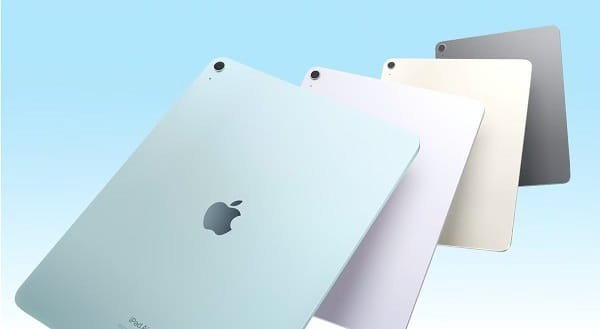
Knowing your exact iPad model is useful for checking warranty status, finding compatible accessories, updating software, selling the device, or troubleshooting issues. Apple releases many iPad models (iPad, iPad Air, iPad Pro, iPad mini) with different generations, chipsets, and features.
Here are the simplest and most reliable ways to check your iPad model.
1. Check iPad Model in Settings (Easiest Method)
This is the quickest way if your iPad turns on.
- Open the Settings app.
- Tap General.
- Tap About.
- Look for Model Name — it will show something like “iPad Pro 12.9-inch (6th generation)” or “iPad Air (5th generation)”.
Note: Below the Model Name, you will also see the Model Number (starts with “A” followed by numbers, e.g., A2436). This number is useful for identifying the exact variant.
2. Check Model Number on the Back of iPad
If the iPad is turned off or you prefer a physical check:
- Flip your iPad over.
- Look near the bottom on the back cover.
- You will find a small text that starts with “Model” followed by a letter and numbers (e.g., Model A2766).
Write down this model number. You can later search it online to know the exact generation and specifications.
3. Check Using Serial Number (Official Apple Method)
- Go to Settings → General → About.
- Copy the Serial Number.
- Open any browser and visit Apple’s official coverage check page: checkcoverage.apple.com
- Enter your serial number and complete the verification.
- Apple’s website will display your exact iPad model along with warranty information.
This method is very accurate and also shows if your iPad is still under warranty.
4. Check Model When iPad Won’t Turn On
If your iPad has a black screen or won’t boot:
- Look at the back cover for the model number (as mentioned in Method 2).
- Check the original packaging box — the model number and name are printed on it.
- Connect the iPad to a computer using a cable and open iTunes (on Windows) or Finder (on Mac). The model name usually appears in the summary tab.
5. Identify iPad Generation by Model Number
Here are some common model numbers for reference:
- iPad Pro (latest): A2925, A2926, etc.
- iPad Air: A2588, A2589, A2591, etc.
- iPad (10th generation): A2696, A2757, etc.
- iPad mini: A2567, A2568, A2569, etc.
You can search “Apple iPad model number [your number]” on Google for full specifications.
6. Additional Information You Can Find in Settings
In the same Settings → General → About section, you can also see:
- iPadOS version
- Storage capacity
- Serial Number
- Wi-Fi Address (MAC address)
- Bluetooth Address
Tips for iPad Users
- Warranty Check: Always use the serial number method on Apple’s website before buying a second-hand iPad.
- Selling Your iPad: Mention the exact model name and generation to get a better price.
- Accessories: Cases, pencils, and keyboards are model-specific. Confirm your model before purchasing.
- Software Updates: Newer iPad models support longer iPadOS updates.
- Multiple iPads: If you have more than one, label them with their model names.
- iPad in a Case: Remove the case temporarily to read the model number on the back.
Common Questions
- What if the model name is not shown clearly? Use the model number and search online or use Apple’s coverage check.
- Is the model number the same worldwide? Some models have different numbers for cellular vs Wi-Fi versions and different regions.
- Can I check model without iPad? Yes, using the original box, purchase invoice, or Apple ID purchase history.
Conclusion
The fastest way to check your iPad model is through Settings → General → About. For more details or when the device is off, use the model number on the back or Apple’s official website with the serial number.
Knowing your exact iPad model helps you make better decisions regarding accessories, repairs, updates, and resale. Keep this information handy for future use.