Using a fake or low-quality iPhone charger can damage your battery, cause overheating, slow charging, or even create safety hazards like fire risks. Apple’s original adapters (especially the 20W USB-C) are designed for safety and optimal performance. Here’s how to verify if your adapter is genuine.
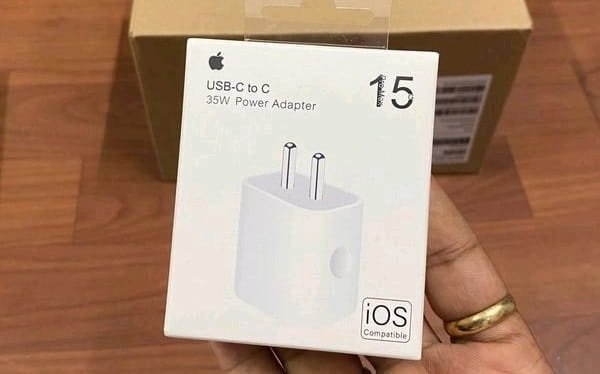
1. Check the Packaging and Box
- Original Apple packaging has high-quality printing with sharp text and correct logos.
- Look for the MFi (Made for iPhone/iPad) badge on third-party certified chargers (for cables).
- Genuine boxes include proper manual, warranty info, and matching serial numbers on the box and adapter.
- Fake boxes often have spelling mistakes, blurry printing, or cheap cardboard.
2. Physical Inspection of the Adapter
Examine these details carefully:
- Text Markings: Genuine adapters have crisp, laser-etched text that reads “Designed by Apple in California” and “Assembled in China” (or Vietnam/Brazil). The text feels slightly recessed, not printed on the surface.
- Build Quality: Original chargers feel solid and heavy. A 20W adapter typically weighs around 39–41 grams. Fakes are usually lighter and feel cheap.
- USB Port: The port on genuine adapters is smooth with precise finishing. Pins inside are neatly arranged.
- Apple Logo: The logo is cleanly embossed and perfectly aligned.
- Model Number: Check for correct model numbers like MUVV3ZM/A (common 20W model). Search the model number on Apple’s support site for confirmation.
3. Check Serial Number (Limited but Helpful)
Apple does not provide direct serial number verification for power adapters on their coverage check page. However:
- Genuine adapters have a clear serial number printed on them.
Connect the charger to a MacBook (if available):
-
- Go to About This Mac → System Report → Power.
- Look under AC Power. Genuine chargers display detailed manufacturer info and serial number. Fakes often show limited or no information.
4. Test Charging Performance
Plug in your iPhone and observe:
- Original chargers deliver fast, consistent charging without excessive heat.
- Fakes may charge slowly, overheat quickly, or stop charging randomly.
- Use the Settings app on iPhone → Battery to monitor charging behavior over time.
5. Use Apple’s Official Resources
- Visit Apple’s support page for power adapters and compare specifications.
- For cables: Check for the MFi certification by looking for the badge or using third-party MFi check tools (available on some apps/websites).
- Buy only from Apple Stores, Apple’s official website, or authorized resellers.
6. Additional Verification Methods
- Weight Test: Compare with a known original charger if possible.
- Magnet Test (unofficial): Some users report that fake chargers may react differently to magnets, but this is not foolproof.
Avoid Common Red Flags:
- Extremely low price.
- No proper certifications (UL, CE, etc.).
- Loose USB port or poor fit.
- Charger gets very hot even on normal use.
Safety Tips
- Using non-original chargers can void your iPhone warranty in case of damage.
- Always prefer MFi-certified cables even if the adapter is third-party.
- Replace damaged chargers immediately.
- For best results, use Apple’s 20W or higher USB-C Power Adapter for modern iPhones.
Conclusion
The most reliable ways to check if your iPhone adapter is original are careful physical inspection, correct markings, proper weight, and testing with a MacBook’s System Report. When in doubt, purchase directly from Apple or authorized sellers to avoid risks.