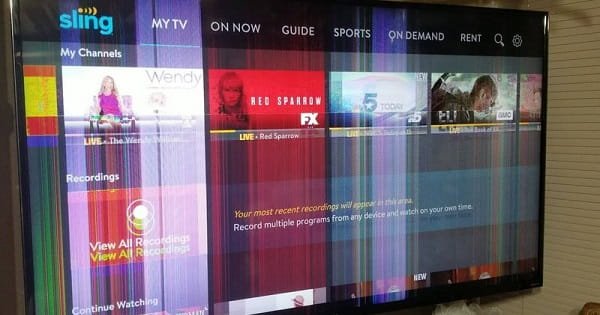
One moment, your favourite match is playing perfectly; the next, the television screen begins flashing, dimming or turning black for a second. Smart TV screen flickering can quickly spoil a movie night, gaming session or important news broadcast. It may also create concern that the display panel is about to fail.
Fortunately, flickering does not always mean that the television needs an expensive repair. The cause may be as simple as a loose HDMI cable, an unstable set-top box signal, an unsuitable picture setting or a temporary software problem. Testing the issue in the correct order can save time and prevent unnecessary service charges.
Check Whether the Problem Affects Every Source
Start by identifying where the flickering appears. Switch between live television, YouTube, another streaming app and an HDMI-connected device.
When only the set-top box flickers, the problem is likely connected to the broadcast signal, HDMI cable or box settings. If one streaming application is affected, the app may need an update or reinstall. Flickering across the home screen, settings menu and every input suggests that the television itself needs closer examination.
This simple test helps separate an external-source problem from a display or software fault.
Restart the TV Properly
Turning the television off with the remote may place it in standby instead of completing a full restart. Switch off the TV, unplug it from the wall socket and wait for around one minute. Disconnect the set-top box, gaming console and streaming device as well.
Reconnect the television first and test it without external devices. Add the other devices one at a time. If flickering returns after connecting a particular product, you have likely identified the source.
Avoid repeatedly switching the television on and off within a few seconds, as this does not allow it to restart correctly.
Inspect HDMI and Antenna Connections
Loose or damaged cables are among the most common reasons for temporary flashing, black screens and broken images. Turn off the connected equipment before removing and reconnecting cables.
Check whether the HDMI connector feels loose, bent or unusually hot. Try another HDMI port and, where possible, test a different certified cable. Very long or low-quality cables may struggle with high-resolution video, gaming refresh rates or HDR signals.
For cable or satellite television, reconnect the antenna line and check the signal information available in the channel settings. Weak or unstable reception can look like screen flickering even when the display panel is working normally.
Adjust Picture and Energy-Saving Settings
Automatic brightness controls may repeatedly change the backlight according to room lighting or the content being displayed. This can sometimes look like flickering.
Temporarily disable energy-saving mode, ambient-light detection, automatic brightness and dynamic contrast. Select the Standard picture mode and observe the screen for several minutes.
If flickering happens only during gaming, turn off Variable Refresh Rate temporarily. Also test a lower refresh rate or resolution on the console or computer. Incompatible combinations of resolution, HDR and refresh rate can cause repeated signal interruptions.
Run the Built-In Picture Test
Many modern smart TVs include a picture test or self-diagnosis feature under Support, Device Care or General Settings.
Run the test while external devices are disconnected. If the test image appears stable, the television panel is probably not causing the problem. Focus instead on cables, input devices or broadcast quality.
When the built-in test also flickers, the issue may involve the TV’s software, backlight, power board or display hardware.
Update the Software and Applications
Outdated firmware can create compatibility problems with streaming services, HDMI devices or picture-processing features. Open the television’s support settings and check for a system update.
Update affected streaming apps as well. If only one app flickers, clear its cache where supported, sign out and reopen it, or reinstall it. A factory reset should be considered only after backups, account details and customised settings have been secured.
Know When Professional Repair Is Needed
Arrange an authorised inspection when flickering continues on every input and during the built-in picture test. Service may also be necessary when the screen shows coloured lines, one dark section, repeated clicking sounds or flickering after the television becomes warm.
Do not open the rear panel yourself. Television components can retain dangerous electrical charge even after the plug has been removed.
FAQs
Q: Why does my smart TV flicker only while watching cable channels?
A: The likely causes are weak broadcast reception, a loose antenna connection or a problem with the set-top box. Test a streaming app to confirm whether the TV screen itself is stable.
Q: Can a faulty HDMI cable cause the screen to blink?
A: Yes. A damaged, loose or unsuitable HDMI cable can interrupt the video signal, especially during 4K, HDR or high-refresh-rate content. Try another port and cable.
Q: Why does the TV flicker when gaming?
A: Variable Refresh Rate, HDR or the selected resolution may not be working correctly with the console or HDMI connection. Test a lower refresh rate and disable VRR temporarily.
Q: Should I factory reset a flickering smart TV?
A: Use a factory reset only after restarting the TV, checking cables, testing different sources and installing updates. It will remove accounts, applications and customised settings.