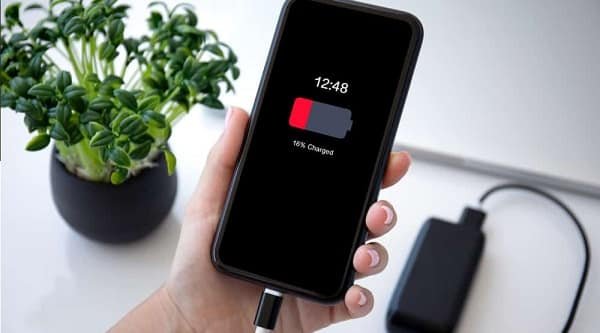
Your phone leaves the charger at 100% in the morning, yet by lunchtime it is already asking for power. The battery percentage seems to fall much faster than it used to, even though your daily routine has not changed significantly.
Rapid battery drain is rarely caused by one dramatic fault. More often, several small power-hungry factors work together—high screen brightness, weak mobile signal, background syncing, ageing battery cells and apps that remain active when the display is off. Finding the real cause can improve battery life without switching off every useful feature.
The Screen Is Consuming More Power Than Expected
The display is usually one of the biggest battery users. High brightness, long screen-timeout settings and 90Hz or 120Hz refresh rates consume extra power, especially during gaming, video streaming or outdoor use.
Check screen consumption under Battery Usage. Turn on adaptive brightness, shorten the screen timeout and select a lower refresh rate when endurance matters more than smoother scrolling. On OLED phones, dark mode can also reduce power use in supported apps.
Background Apps Are Staying Active
An app does not always become inactive when you leave it. Social media, shopping, email, fitness, weather and news apps may continue syncing data, checking location or sending notifications.
Open Battery Usage and identify applications consuming unusually high power. Restrict background activity for apps you rarely need instantly. Avoid restricting essential messaging or banking apps if delayed alerts would be a problem.
Recently installed apps deserve attention. When drain begins suddenly, updating or uninstalling the newest application may solve the problem faster than changing several settings.
Weak Network Coverage Is Working the Phone Harder
A smartphone uses additional power while searching for a stable mobile signal. This commonly happens in basements, rural areas or buildings with thick walls. Unstable 5G coverage may also make the device switch repeatedly between networks.
Notice whether the battery falls faster on mobile data than on Wi-Fi. In weak-coverage areas, use reliable Wi-Fi or temporarily select 4G. Turn off the mobile hotspot after use because tethering consumes both battery and data quickly.
Location, Bluetooth and Syncing Stay Busy
Location access is necessary for maps, ride-booking and delivery apps, but every application does not need it throughout the day. Review permissions and change unnecessary “Allow all the time” access to “Allow only while using the app.”
Connected watches, trackers and audio devices also add to battery use. Photo backup and cloud syncing consume power during large uploads. Instead of disabling everything, remove permissions and connections that provide no daily benefit.
An Update or App Bug May Be Responsible
Battery life can temporarily worsen after a major system update because the phone may be optimising apps, rebuilding indexes and syncing information. This usually settles after some normal use.
If the problem continues, restart the phone and install pending system and app updates. Safe mode can help identify a troublesome third-party app because it temporarily disables downloaded applications.
A factory reset should be the final troubleshooting step, not the first. Back up important data before considering it.
The Battery May Have Aged
Rechargeable batteries lose capacity over time. A two- or three-year-old phone may display 100%, but that charge can hold less energy than it did when the device was new.
Warning signs include sudden percentage drops, unexpected shutdowns, excessive heat, swelling or extremely slow charging. If swelling appears, stop charging the device and arrange professional inspection immediately.
A battery replacement through an authorised service provider may be cheaper than replacing an otherwise functional phone.
Simple Changes That Improve Battery Life
Use Battery Saver during travel, reduce unnecessary notifications and download films or music over Wi-Fi before a long journey. Avoid gaming or video calls while charging because the extra heat can affect performance and battery condition.
Do not leave the phone on a hot car dashboard or under a pillow while charging. Also avoid unknown chargers that may not meet the device manufacturer’s recommended power and safety requirements.
FAQs
Q: Why does my battery drain when the phone is unused?
A: Background syncing, poor reception, location access or a faulty app may continue using power with the screen off. Review the battery-usage graph for unusual overnight activity.
Q: Can notifications reduce battery life?
A: Yes. Frequent alerts wake the screen, trigger vibration and create network activity. Disable promotional notifications while keeping essential communication and payment alerts enabled.
Q: Should I charge the phone to 100% every time?
A: Occasional full charging is fine. Avoiding excessive heat and leaving the device connected unnecessarily is generally more useful than following a rigid charging percentage.
Q: When should the battery be replaced?
A: Consider replacement when daily endurance becomes impractical, the phone shuts down unexpectedly or diagnostics show serious deterioration. A swollen battery needs immediate professional attention.